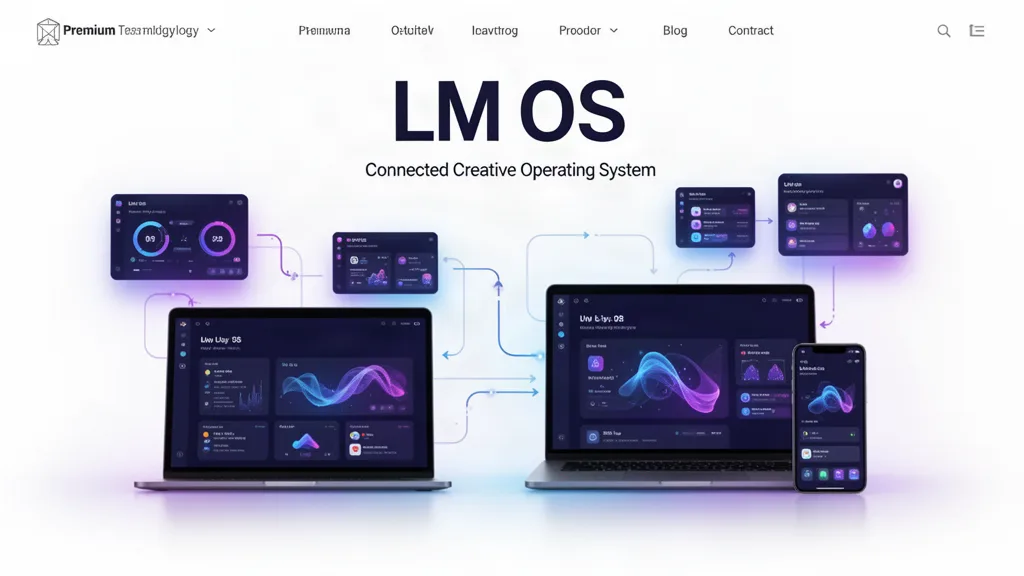
LMOS Beta Update: Install Apps, Double-Click to Open, and Close Windows Without Uninstalling
Update 32 formalizes LMOS apps as installed tools inside one desktop: Install is separate from Open, desktop icons launch on double-click, repeated opens focus singleton windows, closing a window leaves the app installed, running apps show in the Dock, and window state survives normal LMOS navigation during the session.
What changed
Added one LMAppManifest registry derived from the existing LM app catalog rather than creating a second application catalog.
Manifests describe version, icon identity, lazy entry module, supported file types, window behavior, permissions and capabilities such as local files, GPU, media, microphone, camera and background jobs.
Existing userAppAccess activation now serves as installed-app state, including the existing activation timestamp as installedAt.
Opening an app records a lightweight app_opened activity so LMOS can derive lastOpenedAt without a duplicate installation database.
The App Store now uses Install for adding an app and Open for launching an installed app. Installing no longer immediately navigates away.
Installed apps appear on the LMOS desktop even before the user manually positions their icon.
Single-click selects a desktop icon; double-click opens it. Reopening a singleton app focuses its existing window instead of spawning duplicates.
The existing movable/resizable LMOS window manager reads manifest size hints and remains the one window system.
Closing an app window does not uninstall the app. Minimize, restore and maximize continue to use the existing desktop window controls.
Open app windows persist in session storage so moving through App Store, Projects or other LMOS screens and returning to the desktop does not forget the session. Signing out clears that window session.
Pinned and sidebar app launches route back through the desktop window manager, and running apps receive a small Dock/sidebar indicator.
Undo is Ctrl/Cmd+Z; Redo is Ctrl/Cmd+Shift+Z or Ctrl/Cmd+Y; Ctrl/Cmd+X remains reserved for Cut where supported.
What this is—and is not
LMOS is borrowing the useful mental model of a desktop operating system: install a tool, see it on your desktop, double-click it, work in a window, close the window, and open it again later. The browser still owns the real JavaScript processes, security boundaries and lifecycle. LMOS does not claim that an iframe or browser module is a native operating-system process.
What testers should try
Install an app from the LMOS App Store and confirm you remain in the store instead of being thrown directly into the editor.
Return to the desktop and confirm the newly installed app appears there.
Single-click the app once and confirm it selects; double-click it and confirm it opens in a movable LMOS window.
Open the same singleton app again from the Dock or App Store and confirm LMOS focuses the existing window instead of creating another copy.
Close the app window and confirm the app remains installed and available on the desktop.
Open several apps, visit Projects or App Store, return to the desktop and confirm the session windows remain.
Try Ctrl/Cmd+Z for Undo, then Ctrl/Cmd+Shift+Z or Ctrl/Cmd+Y for Redo. Confirm Ctrl/Cmd+X is not hijacked by history.
Use the beta on real work.
The most useful feedback is not “I like it.” Tell us where you hesitated, what took too many clicks, what did not save the way you expected, and what would make this useful enough to return to next week.