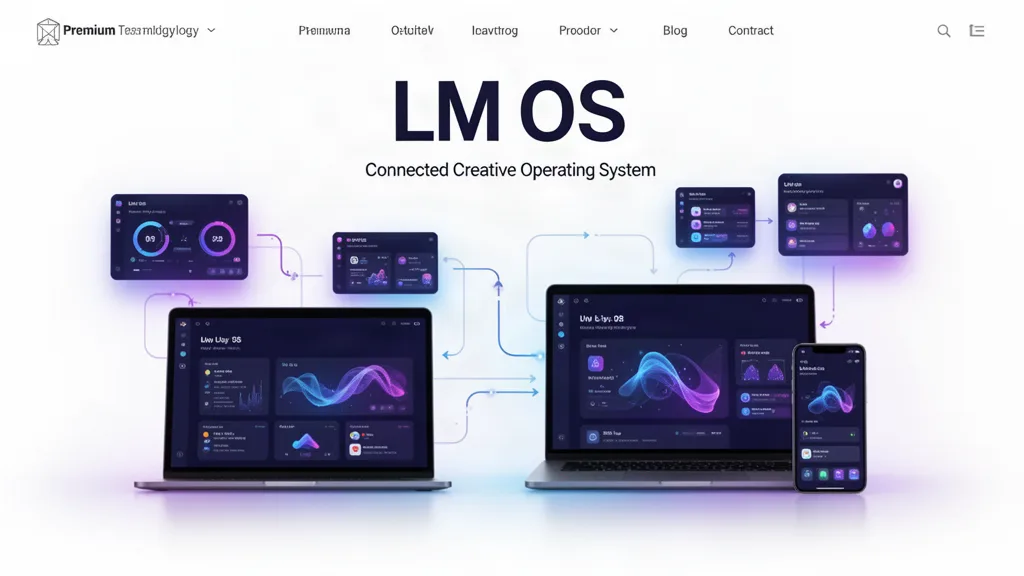
LMOS Beta Update: Windowed Apps Can Maximize, Snap, and Go Fullscreen
Update 33 turns the LMOS window layer into an explicit state machine: normal, minimized, maximized, fullscreen, snapped left and snapped right. App launch now runs through one LMAppRuntime controller over the existing registry/window manager, and LMOS keeps its own file-type resolver authoritative instead of depending on browser/PWA associations.
What changed
Added LMAppRuntime as a thin controller over the existing LMOS app registry and current React window manager—no duplicate registry and no second window system.
Singleton launch checks the current window list first and focuses the existing app window before loading another copy.
New app launches lazy-load the registered entry module, then create a window using the manifest default size and launch payload.
Replaced Update 32 minimized/maximized booleans with one LMWindowState union: normal, minimized, maximized, fullscreen, snapped-left and snapped-right.
Added LMWindowStateRecord with current bounds plus previousBounds so normal window size and position survive maximize, snap and fullscreen transitions.
Old Update 32 session-window records migrate forward automatically instead of being discarded.
Green window control toggles maximize/restore; double-clicking the title bar does the same.
Compact title-bar controls can snap a window left, snap it right, or enter fullscreen without adding another bulky toolbar.
Fullscreen uses an LMOS fullscreen window state and opportunistically requests the browser Fullscreen API on a direct user click. If the browser declines or does not support it, LMOS still fills the working surface.
Escape/fullscreenchange restores the previous LMOS window state. Moving a maximized or snapped title bar restores the normal bounds first so the window can float again.
Minimized windows restore to the state they came from instead of forgetting whether they were maximized or snapped.
Managed/local files now double-click into LMOS My Stuff rather than bypassing LMOS for a raw external URL.
Added an internal Open With resolver that matches file extensions against the same LMAppManifest fileTypes used by the app registry.
PWA/desktop file associations are explicitly treated as optional platform integrations; LMOS manifest resolution remains authoritative.
The v2 window-session record drives restored windows and Dock/sidebar running indicators from the same state.
The runtime rule
Apps do not own their own operating system. LMAppRuntime coordinates launch. LMAppRegistry describes the app. LMWindowManager owns visible windows. LMFS owns files. Projects own project identity. Each specialist app remains focused on its creative job while these engines stay shared.
Fullscreen versus maximize
Maximize fills the LMOS working surface while leaving the operating-system shell concept intact. Fullscreen is the stronger presentation mode: the selected app window visually takes over the viewport, and LMOS may request native browser fullscreen when the browser permits it from that user action. Exiting fullscreen returns to the prior LMOS state instead of losing the user’s normal bounds.
File handling boundary
Desktop browsers may let an installed PWA advertise file types, but support differs by platform and browser. LMOS therefore never depends on that feature to decide what can open a file. Platform file handlers should hand the file to LMOS, and LMOS decides which installed apps are valid candidates from its own manifests.
What testers should try
Open an installed app, move and resize it, then maximize and restore it. Confirm the original floating bounds return.
Snap a window left, restore it, then snap it right. Confirm the window remains usable and the desktop is still visible beside it.
Maximize an app, enter fullscreen, then exit fullscreen. Confirm it returns to maximized rather than jumping to an unrelated size.
Minimize a maximized or snapped window, restore it from the minimized shelf, and confirm the prior state returns.
Drag a maximized or snapped title bar and confirm LMOS restores the normal floating window before moving it.
Open the same singleton app from the Dock twice and confirm LMOS focuses one existing app window.
Double-click a Library file from the desktop and confirm LMOS opens My Stuff for that asset instead of bypassing the operating system with a raw storage URL.
Use the beta on real work.
The most useful feedback is not “I like it.” Tell us where you hesitated, what took too many clicks, what did not save the way you expected, and what would make this useful enough to return to next week.